Manufacturing
training
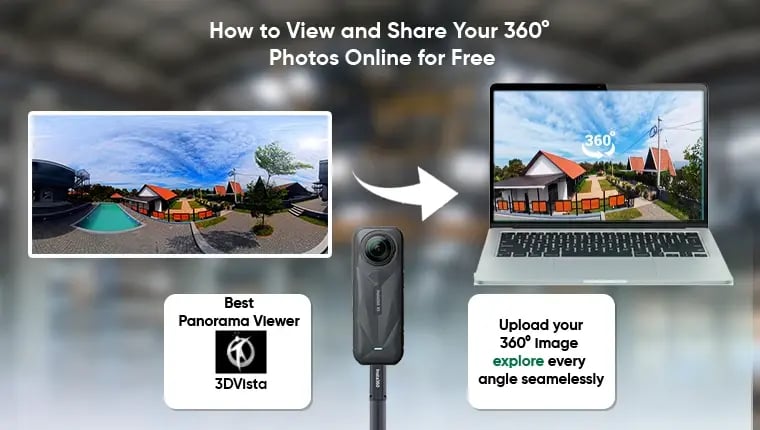

Have you ever used Google Maps to explore a street as if you were standing right there? Or maybe you've seen a photo on Facebook that you could click and drag to look all around you. This immersive experience is created with a special kind of picture—a 360° photo—that captures everything in a scene: up, down, and all sides. It's less like a flat photograph and more like a "photo bubble" that you can step inside.
If you’ve ever seen the raw file for one of these photos, it looks incredibly strange and distorted, like a funhouse mirror version of a landscape. That's because the entire spherical scene has to be stretched out to fit into a flat, rectangular image. This format is a brilliant bit of engineering designed to be read by special software, but it's not meant to be viewed directly by the human eye.
That’s where a "panorama viewer" comes in. Think of it as a magic window that takes the warped, stretched-out image and wraps it back into the "photo bubble" it came from. This guide explains how that software works and how you can easily use it to display your own spherical photography.
In this guide:
So you have a 360° photo sitting on your phone or computer, but how do you share the "look-around" experience with others? If you just email the file, they’ll only see a strange, stretched-out image. The magic happens when you use an online 360 viewer service—a free tool that properly displays your photo in an interactive frame for anyone to explore.
Getting your photo online takes less than two minutes. While there are many options, a fantastic and user-friendly online panoramic photo tool is 3DVista. The process is as simple as this:
That’s it! This simple link is your key. You can paste it into an email, a text message, or a social media post. Anyone who clicks it will instantly see your interactive photo in their web browser—no special app needed. It works beautifully on both computers and smartphones, giving everyone the full, immersive experience you intended.
While a shareable link is perfect for emails and texts, what if you want that interactive experience to live directly on your own blog or business website? By "embedding" the viewer, you can place the fully interactive photo right on your page. This is a powerful trick for platforms like a real estate virtual tour or a portfolio, as it keeps visitors captivated on your site instead of sending them away to another tab.
The online viewer service makes this incredibly simple by giving you something called an 'embed code.' Think of it as a snippet of pre-written instructions for your website. It’s the exact same concept used to put a YouTube video on a webpage. On your viewer service (like 3DVista), just look for a 'Share' button or an icon that looks like this: < >. When you click it, you’ll see the code—just copy it to your clipboard.
Finally, head over to your website editor (like Squarespace, Wix, or WordPress). Don't paste the code into a normal text box. Instead, look for an option to add a special block or element called 'Code,' 'Custom HTML,' or something similar. This is the designated spot. Paste your copied code into this block, save your page, and that's it! Your immersive 360° photo will appear right on your website, ready to wow your visitors.
[Image: A screenshot of a generic website editor like Squarespace or WordPress. An arrow points to an icon labeled "+ Add Block," with a pop-up menu showing a highlighted "Custom HTML" or "Code" block, visually guiding the user on where to paste the embed code.]
Once you’ve mastered embedding a single 360° photo, you might wonder: what if someone could ‘walk’ from the living room into the kitchen? This is exactly what a virtual tour does. Instead of just one immersive scene, it’s a series of connected 360° photos that creates a seamless walkthrough, giving your audience the freedom to explore a space on their own.
The magic that links these scenes is a feature called a 'hotspot.' Think of it as a clickable doorway or an interactive arrow you place inside your photo. When a viewer clicks on a hotspot—say, one placed over the kitchen door in your living room scene—they are instantly transported into the kitchen photo. It's a simple but incredibly effective way to guide visitors from one point of interest to another.
Building these experiences is surprisingly straightforward. Much of the simple virtual tour creation software available online also lets you create interactive hotspots in photos with just a few clicks. By connecting several images, you build a powerful self-guided tour that gives customers a true sense of your space, making it a fantastic tool for real estate or business showrooms.
Those mesmerizing "look-around" photos you've seen online are no longer a mystery. Now that you know how they work, you can create your own engaging experiences. Simply follow this three-step plan to get started:
You’re no longer just taking pictures; you’re building immersive worlds. Whether for a vacation memory, a real estate listing, or as a simple 360 product photography solution, you have the power to let others step inside your photo.